
Get Started
From new account to your first result.
Everything you need to go live with LabServices: a walkthrough of your first order, mobile app setup, and a checklist for rolling out your whole team.
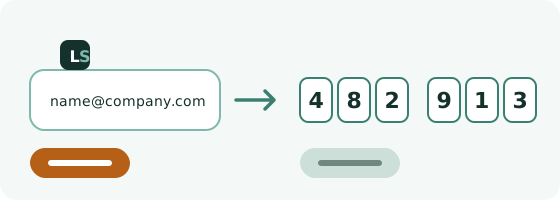
Log in with a code
There is no password. Go to the web address your laboratory gave you. Most customers use app.labservices.io, but some have their own, like your-lab.labservices.io. Always use the address your lab told you. Enter your email, and choose how to get your one-time code: by email, or by text message if your account has a phone number. Enter the 6-digit code and you are in. The code is valid for 10 minutes. If you don't have an account yet, your laboratory sets you up, and you get a welcome email when it is ready.
Add the app to your home screen
On iPhone or Android, save LabServices to your home screen so it opens full screen like any other app, see the guides below. The app also offers this itself on your orders list, and on the Profile page under Install app. On iPhone, log in once more the first time you open it from the home screen.
Start an order and add samples
Tap the plus button. An order starts with the address where the samples were taken, and optionally a case number and an insurance partner. Then add your samples one by one: sample area, the analysis you want, and optionally building age, location and notes. Choose a turnaround time for the whole order, pick how the samples reach the lab, and press Order now. The lab receives the order at once, no paper form.
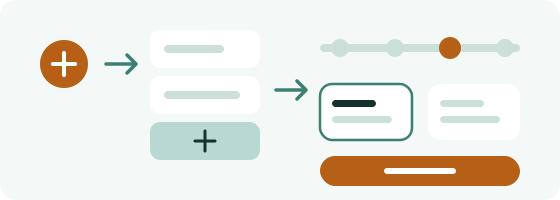
Choose how the samples reach the lab
Drop them off at one of the lab's drop points and pick a day, or send them yourself and tell us the expected arrival date. Your order stays a draft, and you can edit it, until you place it.
Follow your order
Every order in your list shows a status: awaiting drop-off, in transit, received by the laboratory, completed, or cancelled. Search by order number, case number or partner name to find an order fast.
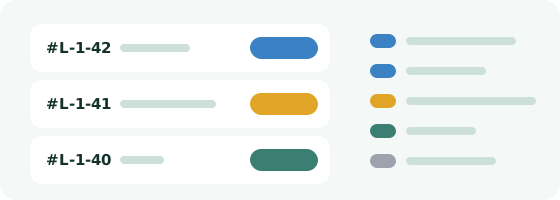
Read results and download the report
Open the order to see results sample by sample, right in the app. Results appear once the lab has approved and sent the report. The Report tab then holds the report as a PDF you can download and share.
iPhone
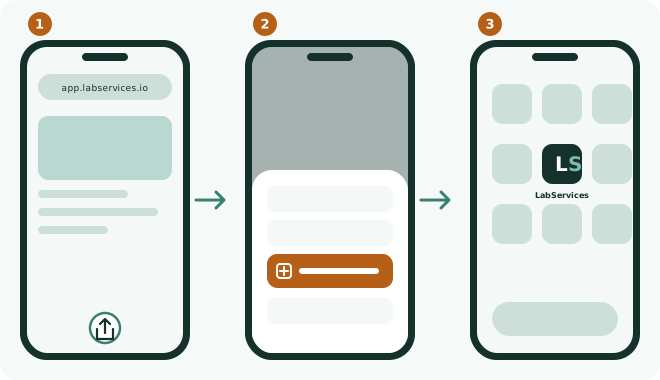
Add LabServices to your home screen on iPhone
Use Safari for best results
- 1Open Safari and go to your app address, the one your lab gave you (app.labservices.io or your-lab.labservices.io)
- 2Tap the Share button at the bottom of the screen
- 3Select 'Add to Home Screen'. LabServices is now a tap away when you need it on-site
Android
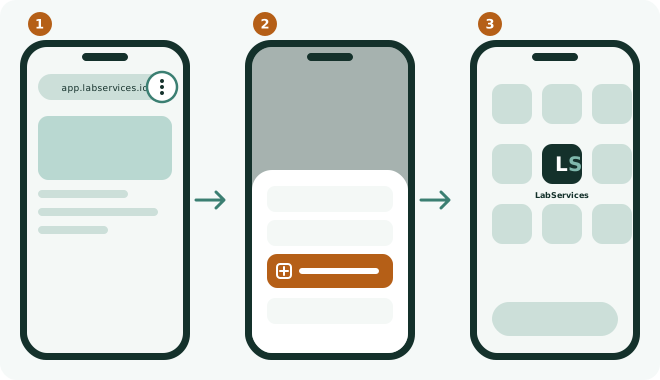
Add LabServices to your home screen on Android
Use Chrome for best results
- 1Open Chrome and go to your app address, the one your lab gave you (app.labservices.io or your-lab.labservices.io)
- 2Tap the three-dot menu in the top right corner
- 3Select 'Add to Home Screen'. LabServices is now a tap away when you need it on-site
Rolling out to your whole team
Day 1: Account setup
- Make sure your laboratory has created your company account (contact your lab if not)
- The account owner logs in with their email and a one-time code
- Check that the contact details and phone number on each user are right, since the phone number is used for text codes
Day 1-2: User setup
- Share the app address your lab uses (app.labservices.io or your-lab.labservices.io) with every user
- The account owner invites colleagues. They receive a welcome email.
- Each colleague logs in with their own email and code
- Confirm each user has added the app to their home screen (iPhone / Android)
Day 2-3: First live order
- Place an order for a current or recent job
- Place it together with a colleague and walk through the flow
- Confirm the lab sees the order (ask your lab contact to verify)
- Follow it to its result and confirm it appears under the order's Results and Report tabs
Day 3-5: Team rollout
- Brief the whole team, 30 minutes is enough
- Point everyone to this Get Started page
- Set the expectation: all new orders go through LabServices from this date
- Book a 2-week check-in to confirm everyone is ordering and following their samples in the app
What works best
- Start with one current job, not all of them. Use the app for new orders as they come in.
- Get your lab contact to confirm they are comfortable with the order format before go-live.
- Add the case number when you start an order. It makes the order easy to find later.
- The biggest adoption driver: the first time someone on your team doesn't have to call the lab for a status update.
Frequently asked questions
Do I need an existing account to get started?
Yes. Your laboratory creates your account, and you receive a welcome email. If you haven't got one, ask your lab contact.
Which web address do I use?
Use the address your laboratory told you. Most customers use app.labservices.io, and some have their own, like your-lab.labservices.io. Each address is a separate app for that lab, so if you can't log in, check with your lab that you are using the right one.
Do I need a password?
No. You log in with your email and a 6-digit code sent by email or text message. The code works once and is valid for 10 minutes.
What is the difference between an order and a case number?
An order is what you send to the lab: an address, one or more samples, a turnaround time and a hand-over method. The case number is your own optional reference on the order, so you can find it again.
How fast does the lab see my order?
Instantly. The lab receives it the moment you press Order now in the app, no email or phone call needed.
Can I change an order after I place it?
You can add, edit and remove samples while the order is still a draft. Once placed, contact your laboratory if something needs to change.
When do I see my results?
Results appear in the app once the lab has approved and sent the report for the delivery. Open the order to see them per sample, and download the report as a PDF from the Report tab.
Do I get push notifications?
Not at the moment. The status on each order in your list shows where your samples are, and results appear as soon as the lab sends the report.
Does the app work without signal?
Once you have visited online, the app opens without a connection. Placing orders and reading new results need signal.
How long does a full team rollout take?
About a week, following the checklist above: account setup on day one, user setup by day two, a first live order by day three, and full team rollout by day five.
Can Milva help run the onboarding with us?
The checklist above is designed to be self-serve, most teams don't need a guided call. If you run into questions along the way, your laboratory is your first point of contact, they know your setup best.
Any questions?
Your laboratory is your first point of contact for questions about a submission, a sample, or a result.